
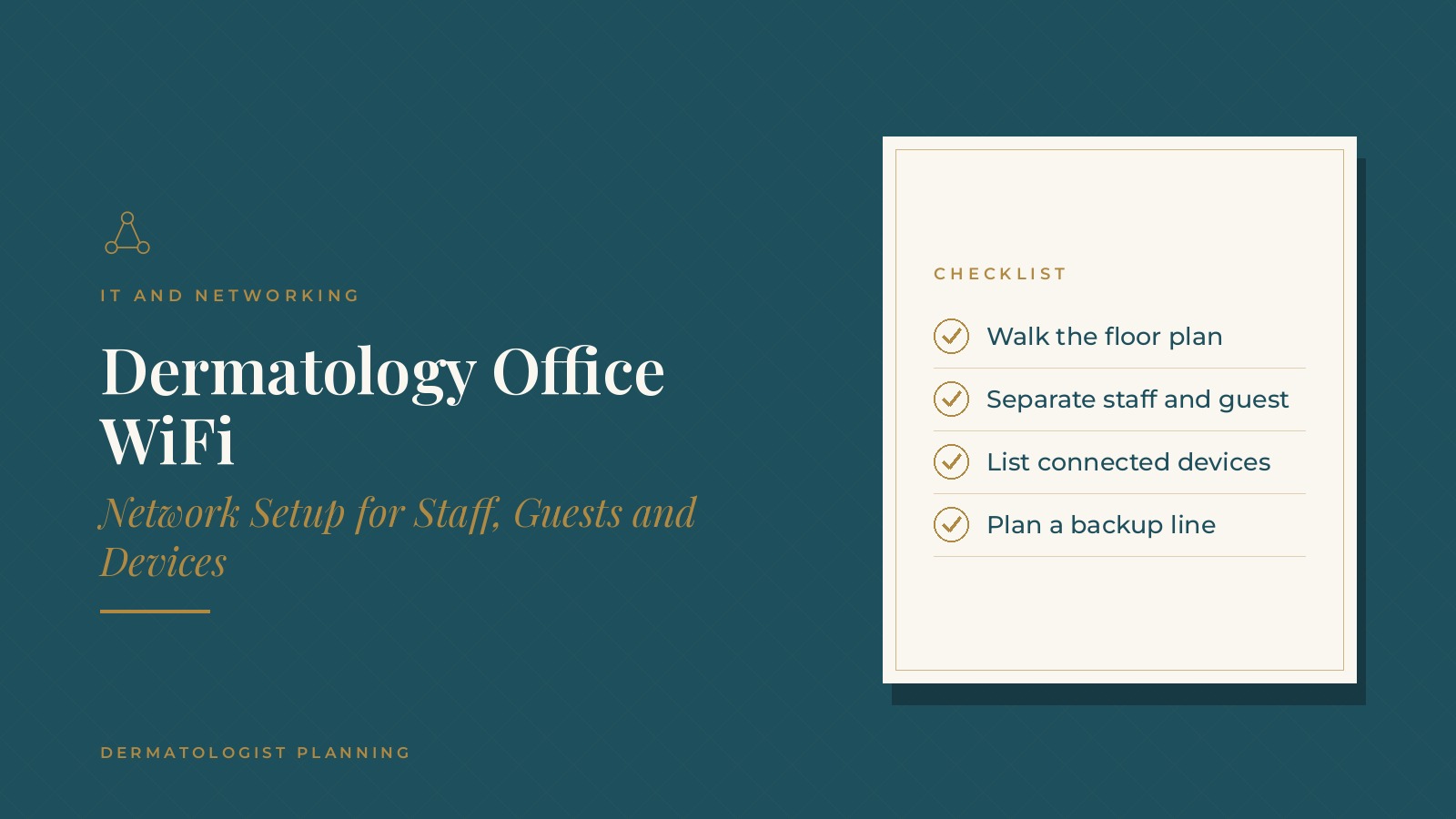
Dermatology Office WiFi | Network Setup for Staff, Guests and Devices
Dermatology office WiFi is the wireless network that keeps staff computers, tablets, imaging devices, phones and guest devices connected across the practice. A well planned network gives steady coverage in exam and procedure rooms, keeps staff and guest traffic apart and keeps the day moving when one connection has a problem.
In short, dermatology office WiFi tends to work best when the practice maps coverage room by room, separates staff, guest and device networks, keeps a list of everything that connects, plans a backup internet line and has an IT professional review the setup on a regular schedule.
This resource from Dermatologist Planning explains coverage planning, separate networks, connected devices, internet backup, upkeep and the questions practices often bring to an IT professional.
Key takeaways
- Map coverage room by room.
- Keep staff and guest networks apart.
- List every connected device.
- Plan a backup internet line.
- Review the network on a schedule.
Why dermatology office WiFi needs planning
A busy, connected clinic
Dermatology teams move between exam rooms, procedure rooms and workstations all day, often with tablets or laptops. Weak spots in coverage can slow charting and checkout.
More devices every year
Phones, printers, card readers, imaging tools, tablets and smart displays all compete for the same network. Planning for that load keeps each device working.
Patients expect a connection
Many patients and families want guest access while they wait. A separate guest network allows that without mixing visitor traffic with practice systems.
Small delays add up
A tablet that drops its connection or a card reader that stalls at checkout may only lose a minute, but those minutes repeat across every room and every patient in a full clinic day.
Planning coverage room by room
Start with the floor plan
An IT professional usually reviews the floor plan and walks the space, noting walls, cabinets and equipment that can weaken a signal.
Access point placement
Several well placed access points, often on ceilings in hallways and larger rooms, tend to give steadier coverage than one powerful router in a back office.
Testing the weak spots
A walk-through with a testing app can show where signals drop, such as procedure rooms at the end of a hallway or areas behind lab equipment.
Planning for growth
Leaving room for extra access points makes it easier to add rooms, staff or devices later.
Wired where it counts
Workstations at the front desk and in fixed spots often use wired connections, which leaves more wireless capacity for tablets and mobile devices moving between rooms.
Dermatologist Planning can introduce you to independent IT and networking professionals who work with dermatology practices on office WiFi, network setup and connected devices. To request an introduction, contact us or call or text (972) 616-4581. You can also read about dermatology practice network security.
Separate networks for staff, guests and devices
Staff network
The staff network connects workstations and practice systems. Access is usually limited to practice owned devices.
Guest network
A guest network gives patients and visitors internet access only, kept apart from practice systems. Many practices post simple sign-in details in the waiting area.
Device network
Some practices place printers, phones, card readers and other connected equipment on their own segment so a problem with one device does not spread to others.
Clear names
Network names that do not reveal the practice name or purpose of each network, paired with strong passphrases, are common choices. The dermatology cybersecurity basics guide covers more protective habits.
Listing every connected device
A simple inventory
Many practices keep a list of each connected device, its location, which network it uses and who to call when it fails.
Imaging and clinical tools
Dermatology offices often connect imaging systems and other clinical equipment. Vendors may have specific network needs that are best gathered before setup.
Phones and printers
Internet phones and shared printers depend on steady connections. Placing them on wired connections where possible can reduce dropped calls and failed print jobs.
Retiring old devices
When a device is replaced, removing it from the network and the inventory keeps the list accurate.
Internet backup and outages
A second connection
Many practices add a backup internet line from a different provider or a cellular backup, so scheduling, phones and charting keep running during an outage.
Automatic failover
Some network equipment can switch to the backup line on its own, which spares staff from making changes in the middle of a busy clinic.
A written outage plan
A short plan that lists who to call, how to check in patients and how to handle phones during an outage helps the team stay calm. The dermatology cloud services guide explains how cloud tools depend on that connection.
Keeping dermatology office WiFi running well
Regular updates
Network equipment needs firmware updates from time to time. Many practices have an IT professional schedule them outside clinic hours.
Periodic reviews
A review every few months can check coverage, speed, connected devices and who has access to each network.
Changing passphrases
Guest passphrases are often changed on a set schedule, and staff access is removed promptly when someone leaves the practice.
Tracking problems
A simple log of slow spots, dropped connections and outages helps an IT professional spot patterns. The dermatology managed IT guide covers how ongoing support is often arranged.
Questions practices bring to an IT professional
Common planning questions
- Where are the coverage gaps today, and what causes them?
- How will staff, guest and device networks be separated?
- What backup internet option fits the practice?
- How often will the network be reviewed, and what will reports show?
Planning around clinic hours
Many practices schedule installs and larger changes for evenings or weekends so patient care is not interrupted.
Documenting the setup
A short document with a network map, the location of each access point and the steps to restart equipment helps staff and any future IT professional understand the setup quickly.
Keeping accounts in the practice's name
Many practices keep internet service accounts, network equipment logins and documentation under practice accounts, with IT professionals added as users.
Frequently asked questions
What is dermatology office WiFi?
It is the wireless network that connects staff computers, tablets, imaging devices, phones and guest devices across a dermatology practice.
Why separate staff and guest networks?
A separate guest network gives visitors internet access only and keeps their traffic apart from practice systems.
How many access points does an office need?
It depends on the size, layout and walls of the space, so an IT professional usually walks the office and tests coverage first.
What happens if the internet goes down?
Many practices add a backup line or cellular backup and keep a short written outage plan so the clinic keeps running.
How often should the network be reviewed?
Many practices have an IT professional review coverage, devices and access every few months and after any office change.
Request an introduction
Dermatologist Planning can introduce you to independent IT and networking professionals who work with dermatology practices on office WiFi, network planning and IT support. Learn more about dermatology practice network security, then take the short Dermatologist Planning Business survey and request an introduction. You can also call or text (972) 616-4581, or contact us. The form goes to [email protected].